



Ontwerp duidelijke SOPs met het rastersysteem
Laatst bijgewerkt:
In WorkInstruction.app, every SOP (Standard Operating Procedure) is composed of elements you can size with a click on the Gear. Select Full width, 1/2, 1/3, 2/3, or 1/4 to build readable, scaleable procedures.
- Verbeterde leesbaarheid en consistentie in procedures
- Responsief van mobiel tot desktop met het rastersysteem
- Combineer breedtes voor afbeeldingen, tekstblokken, video's en checklists
Hoe het raster werkt
The layout is based on a 6-column grid. Each width maps to a specific column span: Full width = 12, 1/2 = 6, 1/3 = 4, 2/3 = 8, 1/4 = 3. On smaller screens, columns stack automatically so your SOPs stay legible.
Voorbeeld
Full width (12/12)
Ideal for step headings, hero images, safety warnings, or long text. In the grid this is simply the default setting, Full width
Half width (1/2)
Use 1/2. Great for pairing an image with a short instruction or for side-by-side checklists.
Half width (1/2)
Combine two halves for symmetry. This pattern works well for "Do / Don't" examples or parallel process paths.
One third (1/3)
Use 1/3. Good for a compact photo, icon list, or KPI card.
Two thirds (2/3)
Use 2/3. Pair with a 1/3 block to present an explanation next to a visual.
Two thirds (2/3)
Use 2/3. Pair with a 1/3 block to present an explanation next to a visual.
One third (1/3)
Use 1/3. Good for a compact photo, icon list, or KPI card.
Quarter (1/4)
1/4. Perfect for short steps, tool lists, or quick safety reminders.
Quarter (1/4)
Stack four quarters to create a compact dashboard of steps or resources.
Quarter (1/4)
Quarters remain readable on mobile because they stack to full width automatically.
Quarter (1/4)
Use consistent headings and short paragraphs to keep scanning effortless.
Elementbreedte instellen via het tandwielpictogram
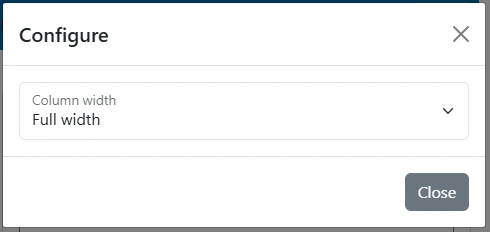
When you add a new element to a work instruction, click the gear icon on that element to choose how wide it should be. The Work Instruction App instantly applies the right grid classes and reflows the layout—no code needed.
Gear
1) Open layout options
Click the gear icon on the element you want to resize. This reveals width presets aligned to the grid.

2) Choose a preset
Select Full width, 1/2, 1/3, 2/3, or 1/4.
3) Save and reorder
Drag to reorder elements and fine-tune hierarchy. Use consistent headings and concise copy to improve scanability.
Breedtepresets met het SOP-rastersysteem
| Preset | Kolommen (12-raster) | Typisch gebruik |
|---|---|---|
| Full width | 12 | Step titles, hero images, long explanations, safety notices |
| 1/2 | 6 | Two columns of balanced content; image + text pair |
| 1/3 | 4 | Small visuals, KPI cards, quick notes next to main content |
| 2/3 | 8 | Primary explanation next to a 1/3 support block |
| 1/4 | 3 | Four-up tiles for steps, tools, links or safety reminders |
FAQ: Raster & SOP best practices
Gerelateerde pagina's
Probeer de Work Instruction App gratis
Maak binnen enkele minuten uw eerste digitale werkinstructie. 30 dagen gratis, geen creditcard nodig.
Probeer 30 dagen gratisGeen creditcard · Altijd opzegbaar · In 5 minuten live