



Design clear SOPs with the grid system
Last updated:
The grid system decides how wide each step on a page of a work instruction is: full width, 1/2, 1/3, 2/3 or 1/4 of a 12-column row. Placing steps side by side keeps pages compact on a tablet or PC, and on a phone the steps of a row stack automatically, so one layout works on every screen.
Every page of a work instruction in the Work Instruction App is built from steps. Give a step the width Full width, 1/2, 1/3, 2/3 or 1/4 to place steps next to each other and build pages that are easy to read.
- Improved readability and consistency across procedures
- Responsive from mobile to desktop with the grid system
- Mix-and-match widths for images, explanations, videos, and checklists
How the grid works
A page is divided into rows, and every row into 12 columns. Each width takes a fixed number of columns: Full width = 12, 1/2 = 6, 1/3 = 4, 2/3 = 8, 1/4 = 3. On a phone the steps of a row are placed under each other automatically, so the page stays readable.
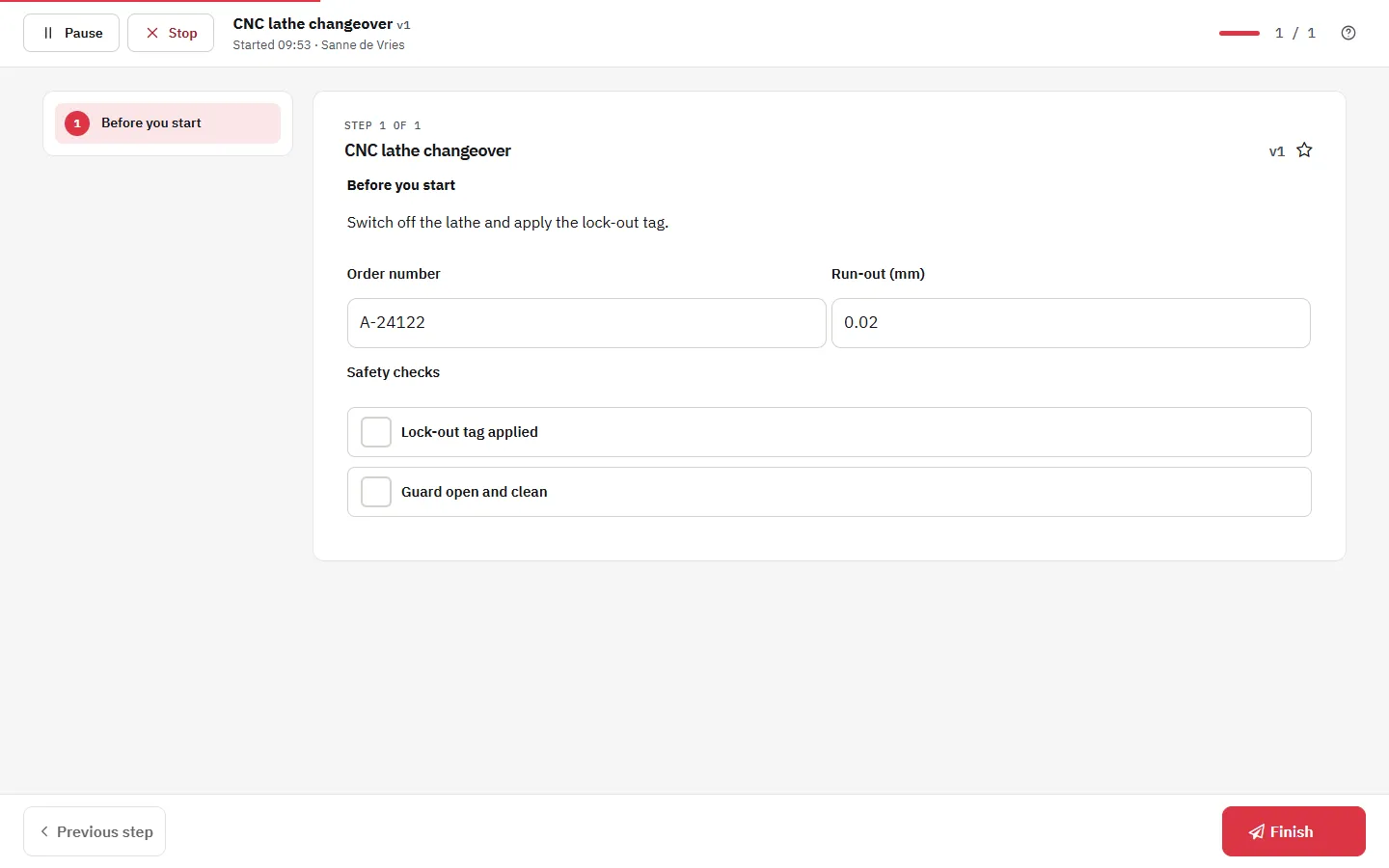
Example
Full width (12/12)
The default. Ideal for explanations, large images, safety warnings and longer text.
Half width (1/2)
Pair a photo with a short instruction, or two input fields such as order number and quantity.
Half width (1/2)
Two halves work well for "right / wrong" examples or two measurements side by side.
One third (1/3)
A compact photo, an icon or a short field next to a wider step.
Two thirds (2/3)
The main explanation, with a 1/3 step next to it for a picture or a check.
Quarter (1/4)
Short fields such as a date, a number or a switch.
Quarter (1/4)
Four quarters make a compact row of measurements.
Quarter (1/4)
On a phone quarters stack to full width automatically.
Quarter (1/4)
Keep labels short so they fit above a narrow field.
Set the width of a step
The width is a property of the step. The editor places the steps of a row next to each other; no code needed.
- Show the layout. Switch on Show layout in the editor. Rows and their "+" buttons become visible, so you can put several steps in one row.
- Select the step. Click the step. Its properties open next to the work instruction.
- Choose the width. Choose Full width, 1/2, 1/3, 2/3 or 1/4 under Width. The change is saved as a draft automatically; publish when the work instruction is ready.
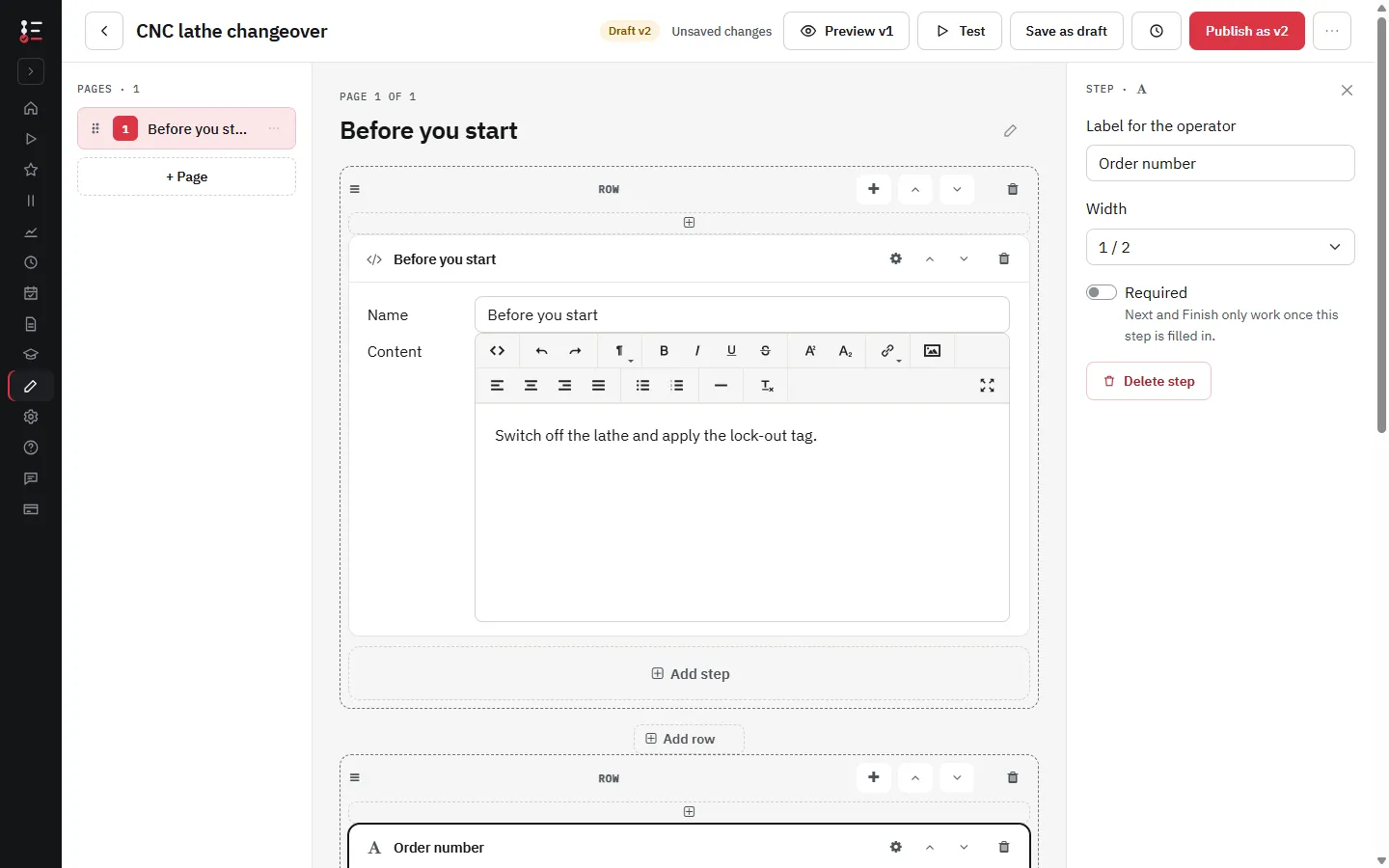
Width presets using the SOP grid system
| Preset | Columns (12-grid) | Typical use |
|---|---|---|
| Full width | 12 | Explanations, large images, safety notices |
| 1/2 | 6 | A photo next to a short instruction; two fields side by side |
| 1/3 | 4 | Small pictures and short fields next to the main explanation |
| 2/3 | 8 | The main explanation next to a 1/3 step |
| 1/4 | 3 | Rows of short measurements or switches |
FAQ: Grid & SOP best practices
Try the Work Instruction App for free
Create your first digital work instruction in minutes. 30-day free trial, no credit card required.
No credit card · Cancel any time · Live in 5 minutes