Skip to content

Weergave-invoer

Discover how to easily collect structured data within your Standard Operating Procedures (SOPs) using the Work Instruction App. Whether you need audio, barcodes, locations, photos or videos, this guide explains every display input type available to streamline your workflows. Designed for industries like manufacturing, logistics, and pharmaceuticals, our intuitive platform helps teams capture input accurately and efficiently at every step of the process.

Bij het uitvoeren van een Standard Operating Procedure (SOP) in de Work Instruction App kunnen gebruikers invoer leveren direct vanaf hun schermen. Gebruikers kunnen gegevens leveren via een breed scala aan configureerbare velden, zoals audiofragmenten, barcodes, locaties, foto's, afbeeldingen, video's en meer. Elk invoertype is ontworpen om nauwkeurige gegevensverzameling bij elke stap van uw workflow te waarborgen.

HTML

Het HTML-veld stelt gebruikers in staat om HTML-fragmenten weer te geven tijdens het uitvoeren van een Standard Operating Procedure (SOP). Dit is ideaal voor het maken van rijke of complexe weergaven.
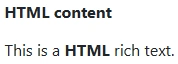
Example of html input in SOP
As a manager you can add a HTML field to your workflow. To do this, click on the "Add element" button in the editor:
Add element to Standard Operating Procedure
Then click on the "HTML" button under the "Static display" tab:
Add HTML to Standard Operating Procedure
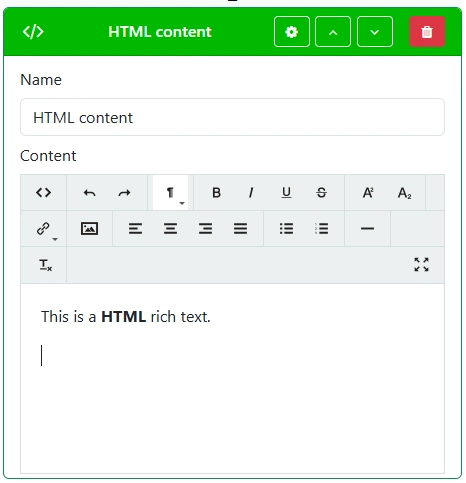
Give your HTML field a clear and descriptive name. This will be shown to users during SOP execution. Enter the required HTML code to be displayed when executing the work instruction
Create HTML

Afbeelding

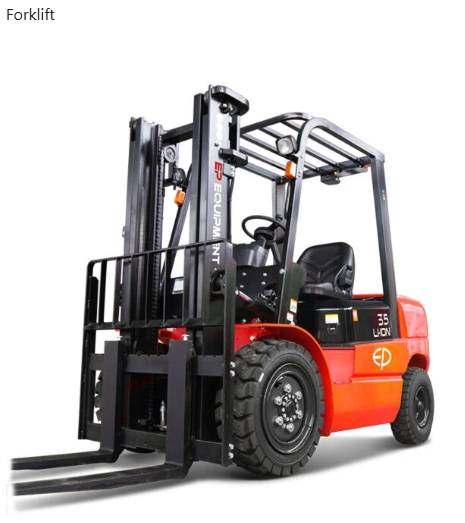
Het afbeeldingsveld stelt gebruikers in staat om afbeeldingen weer te geven tijdens het uitvoeren van een Standard Operating Procedure (SOP). Dit is ideaal voor visuele elementen in uw instructie.
Example of image in SOP
As a manager you can add a Image field to your workflow. To do this, click on the "Add element" button in the editor:
Add element to Standard Operating Procedure
Then click on the "Image" button under the "Static display" tab:
Add Image to Standard Operating Procedure
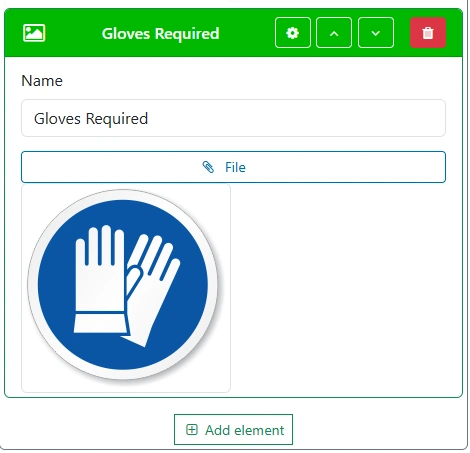
Give your Image field a clear and descriptive name. This will be shown to users during SOP execution.
Create Image

Scheidingslijn

Het scheidingslijnveld stelt gebruikers in staat om verschillende elementen in de Standard Operating Procedure (SOP) te scheiden.

Example of separator input in SOP
As a manager you can add a Separator field to your workflow. To do this, click on the "Add element" button in the editor:
Add element to Standard Operating Procedure
Then click on the "Separator" button under the "Static display" tab:
Add Separator to Standard Operating Procedure
Create Separator

PDF

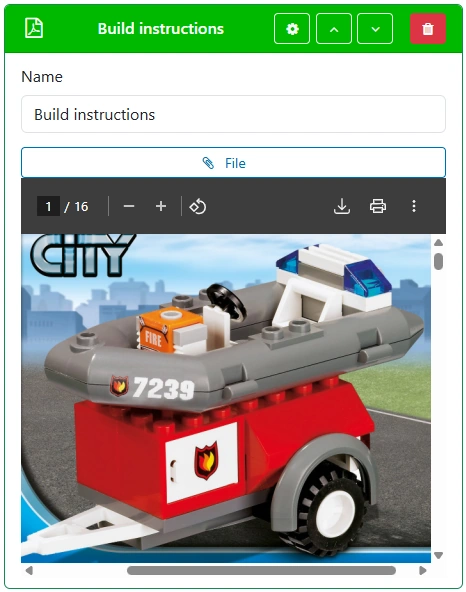
Het PDF-veld stelt gebruikers in staat om een PDF-bestand weer te geven tijdens het uitvoeren van een Standard Operating Procedure (SOP).
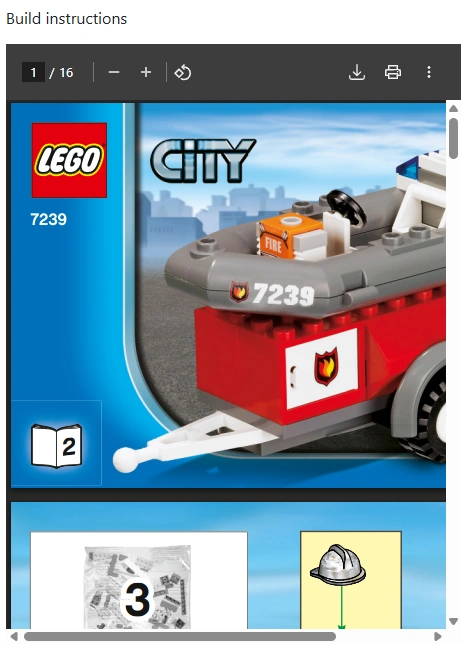
Example of pdf input in SOP
As a manager you can add a PDF input field to your workflow. To do this, click on the "Add element" button in the editor:
Add element to Standard Operating Procedure
Then click on the "PDF" button under the "Static display" tab:
Add PDF to Standard Operating Procedure
Give your PDF field a clear and descriptive name. This will be shown to users during SOP execution.
Create PDF

Foto weergeven

Het foto weergeven-veld stelt gebruikers in staat om een foto op te nemen en weer te geven tijdens het uitvoeren van een Standard Operating Procedure (SOP).
Example of display-photo input in SOP
As a manager you can add a Display photo input field to your workflow. To do this, click on the "Add element" button in the editor:
Add element to Standard Operating Procedure
Then click on the "Display photo" button under the "Static display" tab:
Add Display photo to Standard Operating Procedure
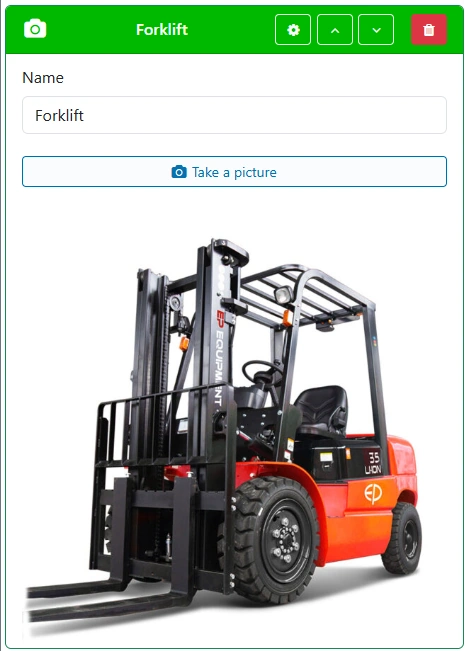
Give your Display photo field a clear and descriptive name. This will be shown to users during SOP execution.
Create Display Photo

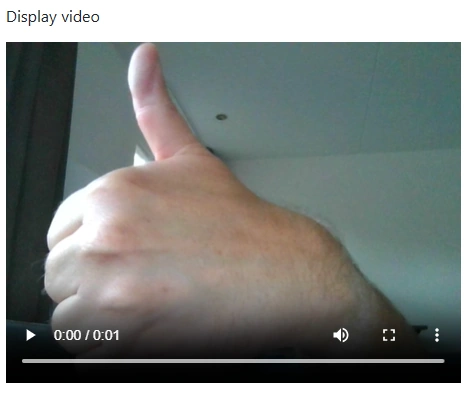
Opgenomen video

Het opgenomen video-veld stelt u in staat om een video op te nemen en deze aan de gebruiker te tonen tijdens de uitvoering van de Standard Operating Procedure (SOP).

Example of recorded-video in SOP
As a manager you can add a Recorded Video field to your workflow. To do this, click on the "Add element" button in the editor:
Add element to Standard Operating Procedure
Then click on the "Recorded Video" button under the "Static display" tab:
Add Recorded Video to Standard Operating Procedure
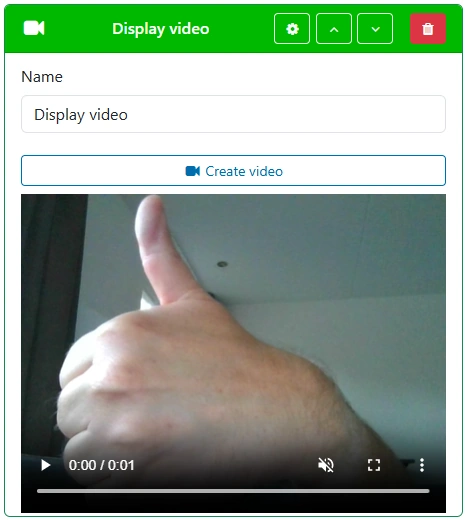
Give your Recorded Video field a clear and descriptive name. This will be shown to users during SOP execution.
Create Recorded Video

Schermopname

Het schermopnameveld stelt gebruikers in staat om schermopnamefragmenten op te nemen en op te slaan tijdens het uitvoeren van een Standard Operating Procedure (SOP).
Example of screen-capture input in SOP
As a manager you can add an Screen Capture input field to your workflow. To do this, click on the "Add element" button in the editor:
Add element to Standard Operating Procedure
Then click on the "Screen Capture" button under the "Static display" tab:
Add Screen Capture to Standard Operating Procedure
Give your Screen Capture field a clear and descriptive name. This will be shown to users during SOP execution.
Create Screen Capture

YouTube

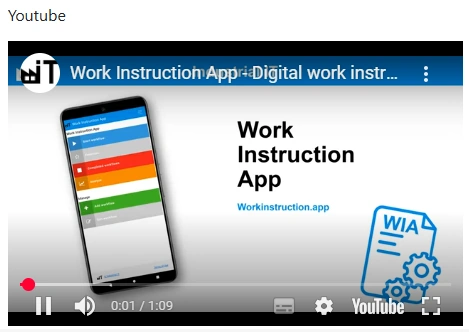
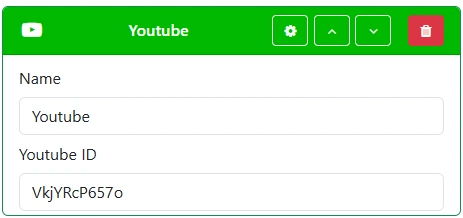
Het YouTube-veld stelt gebruikers in staat om een YouTube-video weer te geven tijdens het uitvoeren van een Standard Operating Procedure (SOP).
Example of youtube in SOP
As a manager you can add an YouTube input field to your workflow. To do this, click on the "Add element" button in the editor:
Add element to Standard Operating Procedure
Then click on the "YouTube" button under the "Static display" tab:
Add YouTube to Standard Operating Procedure
Give your YouTube field a clear and descriptive name. This will be shown to users during SOP execution.
Create YouTube