Apparaatinvoer

Discover how to easily collect structured data within your Standard Operating Procedures (SOPs) using the Work Instruction App. Whether you need audio, barcodes, locations, photos or videos, this guide explains every device input type available to streamline your workflows. Designed for industries like manufacturing, logistics, and pharmaceuticals, our intuitive platform helps teams capture input accurately and efficiently at every step of the process.

Bij het uitvoeren van een Standard Operating Procedure (SOP) in de Work Instruction App kunnen gebruikers invoer leveren direct vanaf hun apparaten. Gebruikers kunnen gegevens leveren via een breed scala aan configureerbare velden, zoals audiofragmenten, barcodes, locaties, foto's, afbeeldingen, video's en meer. Elk invoertype is ontworpen om nauwkeurige gegevensverzameling bij elke stap van uw workflow te waarborgen.

Audio

Het audioveld stelt gebruikers in staat om audiofragmenten op te nemen en op te slaan tijdens het uitvoeren van een Standard Operating Procedure (SOP).
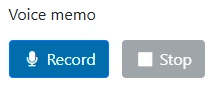
Example of audio input in SOP
As a manager you can add an Audio input field to your workflow. To do this, click on the "Add element" button in the editor:
Add element to Standard Operating Procedure
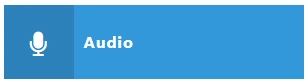
Then click on the "Audio" button under the "User Input" tab:
Add Audio to Standard Operating Procedure
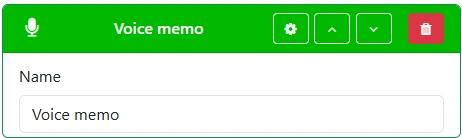
Give your Audio field a clear and descriptive name. This will be shown to users during SOP execution.
Create Audio

Barcode

Het barcodeveld stelt gebruikers in staat om barcodes te scannen met de webcam van hun apparaat tijdens het volgen van een Standard Operating Procedure (SOP). Dit is nuttig voor het registreren van productbarcodes, QR codes en productieformulieren binnen uw workflow.

Barcode
As a manager you can add a Barcode field to your workflow. To do this, click on the "Add element" button in the editor:
Add element to Standard Operating Procedure
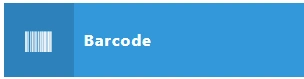
Then click on the "Barcode" button under the "User Input" tab:
Add Barcode field to Standard Operating Procedure
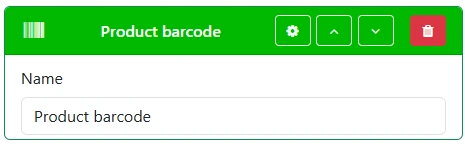
Make sure to provide a clear and descriptive label for the Barcode field so that users immediately understand its purpose.
Create Barcode input field

Locatie

Het locatieveld stelt een gebruiker in staat om de huidige GPS-locatie van het apparaat te leveren tijdens het uitvoeren van een Standard Operating Procedure.

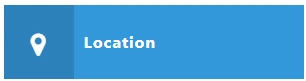
Location field
As a manager you can add a Location element to your workflow. To do this, click on the "Add element" button in the editor:
Add element to Standard Operating Procedure
Then click on the "Location" button under the "User Input" tab:
Add Location to Standard Operating Procedure
Give the location field a good, clear, recognizable name.
Create Location field
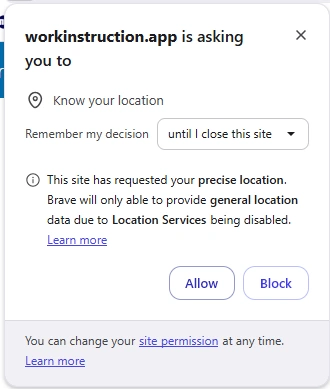
Make sure you give the app access to use the current location:
Allow location usage

Foto

Het fotoveld stelt een gebruiker in staat om een foto te maken tijdens de uitvoering van een Standard Operating Procedure.
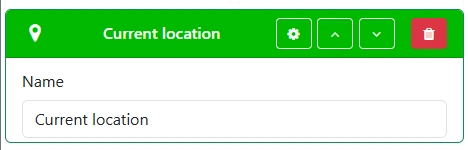
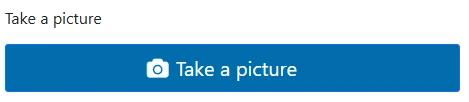
Photo field
As a manager you can add a Photo input to your workflow. To do this, click on the "Add element" button in the editor:
Add element to Standard Operating Procedure
Then click on the "Photo" button under the "User Input" tab:
Add Photo to Standard Operating Procedure
Provide a clear and descriptive name for the photo field.
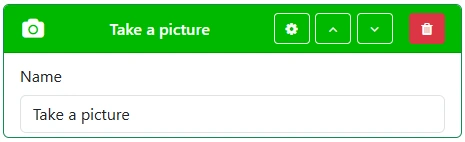
Create Photo field

Video

Het videoveld stelt een gebruiker in staat om een video te maken tijdens het uitvoeren van een Standard Operating Procedure.
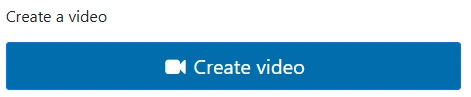
Video
As a manager you can add a Video input to your workflow. To do this, click on the "Add element" button in the editor:
Add element to Standard Operating Procedure
Then click on the "Video Button" button under the "User Input" tab:
Add Video to Standard Operating Procedure
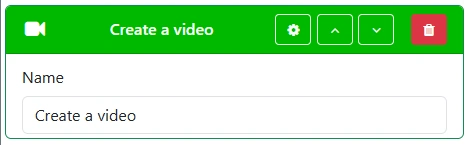
Provide a clear and descriptive name, and configure any relevant options. And add the options you like.
Create Video field
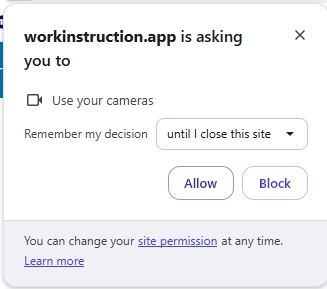
Make sure you give the app access to use the camera:
Allow camera usage