Skip to content

Anzeige-Eingabe

Discover how to easily collect structured data within your Standard Operating Procedures (SOPs) using the Work Instruction App. Whether you need audio, barcodes, locations, photos or videos, this guide explains every display input type available to streamline your workflows. Designed for industries like manufacturing, logistics, and pharmaceuticals, our intuitive platform helps teams capture input accurately and efficiently at every step of the process.

Beim Ausführen einer Standard Operating Procedure (SOP) in der Work Instruction App können Benutzer Eingaben direkt über ihre Anzeigen bereitstellen. Benutzer können Daten über eine Vielzahl konfigurierbarer Felder bereitstellen, wie Audiofragmente, Barcodes, Standorte, Fotos, Bilder, Videos und mehr. Jeder Eingabetyp ist darauf ausgelegt, eine genaue Datenerfassung in jedem Schritt Ihres Workflows sicherzustellen.

HTML

Das HTML-Feld ermöglicht es Benutzern, beim Ausführen einer Standard Operating Procedure (SOP) HTML-Fragmente anzuzeigen. Ideal für die Erstellung umfangreicher oder komplexer Darstellungen.
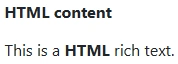
Example of html input in SOP
As a manager you can add a HTML field to your workflow. To do this, click on the "Add element" button in the editor:
Add element to Standard Operating Procedure
Then click on the "HTML" button under the "Static display" tab:
Add HTML to Standard Operating Procedure
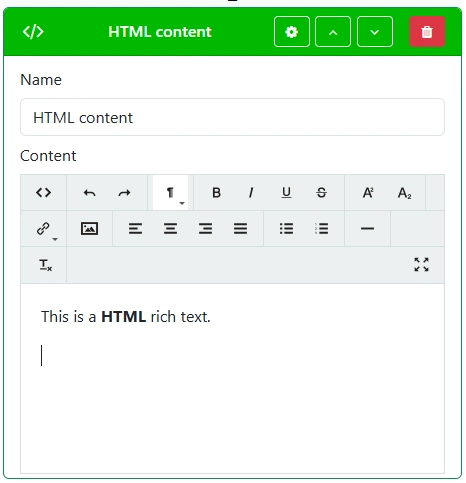
Give your HTML field a clear and descriptive name. This will be shown to users during SOP execution. Enter the required HTML code to be displayed when executing the work instruction
Create HTML

Bild

Das Bild-Feld ermöglicht es Benutzern, beim Ausführen einer Standard Operating Procedure (SOP) Bildfragmente anzuzeigen. Ideal für visuelle Elemente in Ihrer Anweisung.

Example of image in SOP
As a manager you can add a Image field to your workflow. To do this, click on the "Add element" button in the editor:
Add element to Standard Operating Procedure
Then click on the "Image" button under the "Static display" tab:
Add Image to Standard Operating Procedure
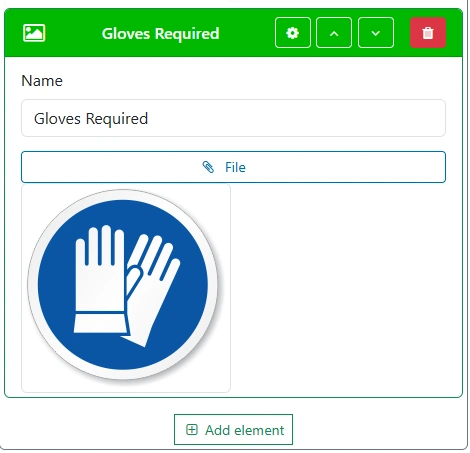
Give your Image field a clear and descriptive name. This will be shown to users during SOP execution.
Create Image

Trennlinie

Das Trennlinien-Eingabefeld ermöglicht es Benutzern, verschiedene Elemente in der Standard Operating Procedure (SOP) voneinander zu trennen.

Example of separator input in SOP
As a manager you can add a Separator field to your workflow. To do this, click on the "Add element" button in the editor:
Add element to Standard Operating Procedure
Then click on the "Separator" button under the "Static display" tab:
Add Separator to Standard Operating Procedure
Create Separator

PDF

Das PDF-Feld ermöglicht es Benutzern, beim Ausführen einer Standard Operating Procedure (SOP) eine PDF-Datei anzuzeigen.
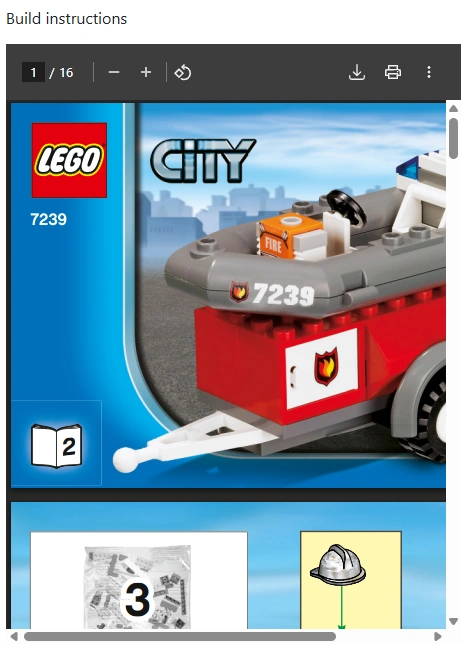
Example of pdf input in SOP
As a manager you can add a PDF input field to your workflow. To do this, click on the "Add element" button in the editor:
Add element to Standard Operating Procedure
Then click on the "PDF" button under the "Static display" tab:
Add PDF to Standard Operating Procedure
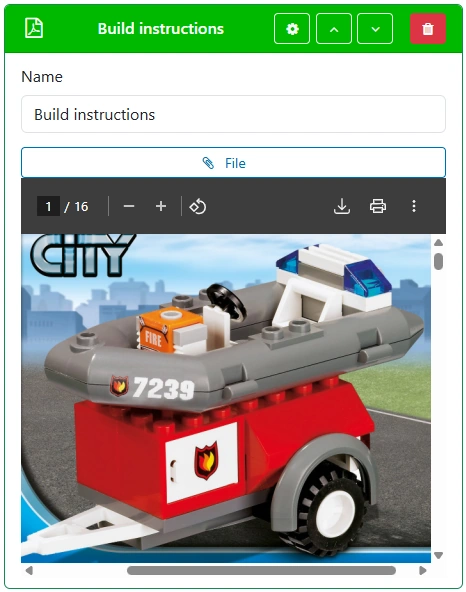
Give your PDF field a clear and descriptive name. This will be shown to users during SOP execution.
Create PDF

Foto anzeigen

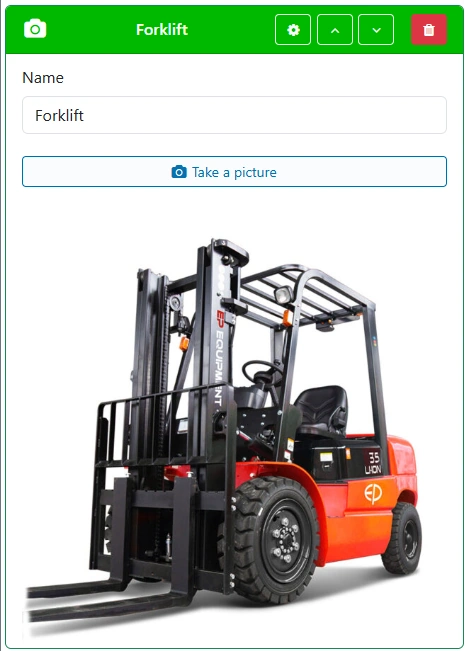
Das Foto anzeigen-Feld ermöglicht es Benutzern, beim Ausführen einer Standard Operating Procedure (SOP) ein Foto aufzunehmen und anzuzeigen.

Example of display-photo input in SOP
As a manager you can add a Display photo input field to your workflow. To do this, click on the "Add element" button in the editor:
Add element to Standard Operating Procedure
Then click on the "Display photo" button under the "Static display" tab:
Add Display photo to Standard Operating Procedure
Give your Display photo field a clear and descriptive name. This will be shown to users during SOP execution.
Create Display Photo

Aufgezeichnetes Video

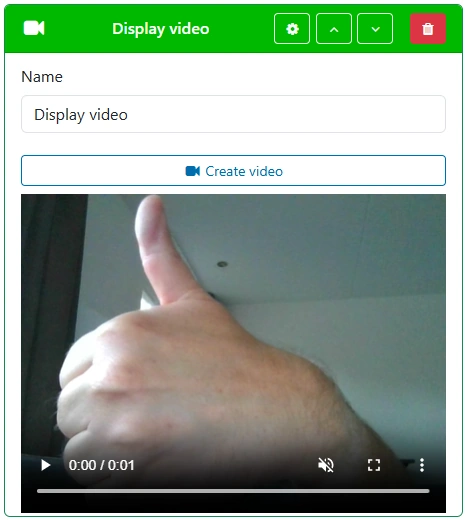
Das Aufgezeichnetes Video-Feld ermöglicht es Ihnen, ein Video aufzunehmen und es dem Benutzer während der Ausführung der Standard Operating Procedure (SOP) zu zeigen.
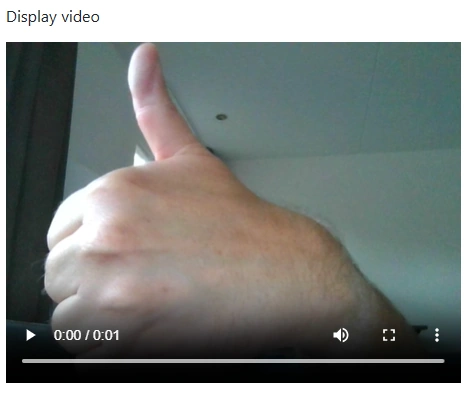
Example of recorded-video in SOP
As a manager you can add a Recorded Video field to your workflow. To do this, click on the "Add element" button in the editor:
Add element to Standard Operating Procedure
Then click on the "Recorded Video" button under the "Static display" tab:
Add Recorded Video to Standard Operating Procedure
Give your Recorded Video field a clear and descriptive name. This will be shown to users during SOP execution.
Create Recorded Video

Bildschirmaufnahme

Das Bildschirmaufnahme-Eingabefeld ermöglicht es Benutzern, beim Ausführen einer Standard Operating Procedure (SOP) Bildschirmaufnahmen aufzunehmen und zu speichern.
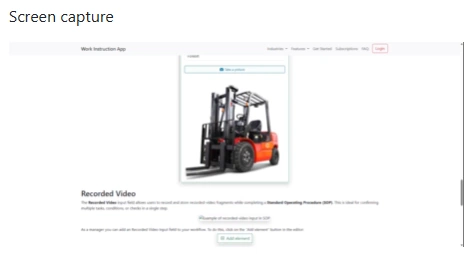

Example of screen-capture input in SOP
As a manager you can add an Screen Capture input field to your workflow. To do this, click on the "Add element" button in the editor:
Add element to Standard Operating Procedure
Then click on the "Screen Capture" button under the "Static display" tab:
Add Screen Capture to Standard Operating Procedure
Give your Screen Capture field a clear and descriptive name. This will be shown to users during SOP execution.
Create Screen Capture

YouTube

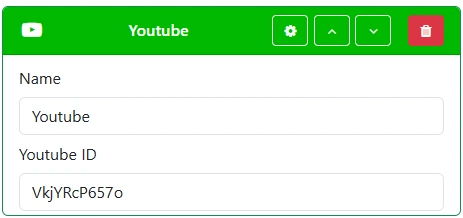
Das YouTube-Feld ermöglicht es Benutzern, beim Ausführen einer Standard Operating Procedure (SOP) ein YouTube-Video anzuzeigen.
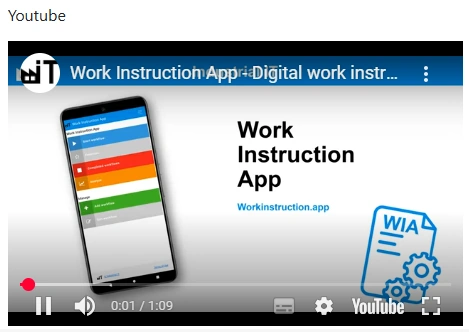
Example of youtube in SOP
As a manager you can add an YouTube input field to your workflow. To do this, click on the "Add element" button in the editor:
Add element to Standard Operating Procedure
Then click on the "YouTube" button under the "Static display" tab:
Add YouTube to Standard Operating Procedure
Give your YouTube field a clear and descriptive name. This will be shown to users during SOP execution.
Create YouTube