In short: a QR code and an NFC tag both put a link on a machine, so an operator opens the right work instruction without searching. A QR code is a printed image that the phone camera reads from a short distance; an NFC tag is a small chip that the phone reads when you hold it against the tag. QR codes are cheaper and work on every phone with a camera; NFC tags are quicker to use and keep working when the label is dirty. On many shop floors the best answer is both on one label.
How does a QR code on a machine work?
A QR code is a pattern of black and white squares that encodes a short piece of text, in this case a web link. The operator points the phone camera at the code, the phone recognises the link and opens it in the browser or in the app. Nothing on the machine is electronic: the code is just ink on a label, so you can print it on a normal office printer, on a label printer or have it engraved or etched.
Because the code is read optically, it needs two things: a clear line of sight and enough of the pattern intact. QR codes contain error correction, so a small scratch or stain is usually no problem, but a code covered in oil, painted over or half torn off will not scan. Light also matters: a code in a dark corner or behind reflective film can take several attempts.
How does an NFC tag work?
NFC (near field communication) is a radio technology that works over a few centimetres. An NFC tag is a sticker, key fob or hard plastic disc with a tiny chip and an antenna, without a battery. When a phone with NFC comes close, the phone powers the chip through its antenna and reads the link stored on it. The operator holds the back of the phone against the tag and the work instruction opens.
Since the tag is read by radio, dirt, dust and paint on the surface of the sticker do not stop it from working, and it works in the dark. What does stop it is metal directly behind the tag: a metal surface disturbs the field, so a standard NFC sticker on a steel machine frame often cannot be read. For metal surfaces you need so-called on-metal tags (also called anti-metal tags), which have a shielding layer between the chip and the surface.
QR code or NFC tag: how do they compare?
The table below compares the two on the points that matter on the shop floor.
| Criterion | QR code | NFC tag |
|---|---|---|
| How it is read | Phone camera, from a short distance | Hold the phone against the tag |
| Phone support | Every phone or tablet with a camera | Phones with NFC; most current Android phones and recent iPhones read tags with a link. Many tablets have no NFC |
| Cost per label | Very low: a printed label | Higher: a chip per label, on-metal tags cost more again |
| Making and changing | Print a new label | Write the link to the tag with a phone (in the Work Instruction App: the Android app) |
| Dirt, oil, paint | Fails when the pattern is covered or damaged | Keeps working through a dirty surface |
| Metal surfaces | No problem | Needs an on-metal tag |
| Light and line of sight | Needs light and a clear view | Works in the dark and behind a thin plastic cover |
| Speed in daily use | Open the camera, aim, wait for focus | Tap and go |
| Visible to everyone | Yes: people see there is something to scan | Only when the tag is marked with a symbol or text |
| Wear and tampering | Can be photographed and copied; fades in sunlight unless printed on durable material | Can be locked after writing, so nobody can overwrite the link |
Neither technology contains the work instruction itself. Both only hold a link. That is an advantage: when you publish a new version of the instruction, the label on the machine stays the same and opens the new version automatically. You never have to replace labels because the procedure changed.
When should you choose a QR code?
- Mixed or unknown devices. Visitors, temporary staff and contractors bring all kinds of phones. Every phone with a camera reads a QR code.
- Tablets on the line. Many tablets have a camera but no NFC reader.
- Many locations at low cost. Labelling a hundred racks, bins or doors is cheap with printed codes.
- Documents and products. A code on a work order, a box or a delivery note travels with the item.
- Public or customer-facing use. Rental equipment or a machine at a customer site: the code is visible and self-explanatory.
When is an NFC tag the better choice?
- Dirty or wet environments. Foundries, paint shops, food production with washdowns, outdoor equipment: places where a printed code does not stay readable.
- High frequency. A check that is done every shift on every machine benefits from tap and go instead of aim and focus.
- Gloves and poor light. Holding a phone against a tag is easier than framing a code with gloves on in a dim area.
- Proof of presence. A tag inside a cabinet or behind a cover can only be read by someone who is physically at that spot, which suits inspection rounds.
Can you combine QR codes and NFC tags?
Yes, and that is often the most robust setup. Put the QR code and the NFC tag on the same label, both with the same link. Operators with an NFC phone tap; anyone else scans. If one of the two is damaged, the other still works. A short text such as "Scan or tap for the work instruction" and the name of the machine on the label tell people what to do and help them check that they are at the right machine.
How do you label a machine for its work instructions?
The steps below work for both technologies. They assume a digital work instruction system that gives each instruction or machine its own link.
1. Decide what the label opens
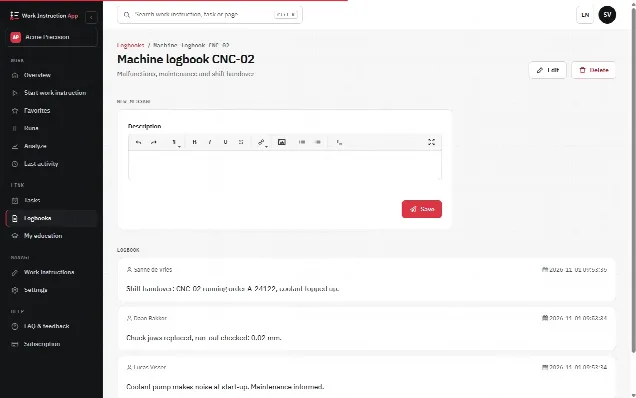
Decide first which work instruction the label opens. A single label suits a fixed task such as a start-up check. For a machine with several tasks (start-up, changeover, cleaning, fault handling), give each task its own clearly named label, so the operator picks the right one on the spot; a separate label can open the logbook of that machine for reports and notes.
2. Choose QR, NFC or both per location
Choose the technology per location using the table above. Look at dirt, metal, light, the devices people carry and how often the label will be used. When in doubt, use both on one label.
3. Pick label material that survives the environment
Select label material that lasts where it will be placed. For QR codes that means a durable polyester or engraved label instead of paper, laminated against oil and cleaning agents. For NFC on metal, order on-metal tags; on plastic, wood or painted panels a standard sticker is usually enough. Test one label for a few weeks before you order hundreds.
4. Create the code or write the tag
Generate the QR code from the link of the work instruction, or write that link to the NFC tag with a phone that can write tags. After writing, lock the tag if your process allows it, so the link cannot be changed by someone else.
5. Place the label where the work starts
Stick the label at the position where the operator stands when the task begins, at eye or chest height, away from hot surfaces, moving parts and the spray path of a cleaner. Put the name or number of the machine on the label as well.
6. Test the label with the devices on the floor
Scan or tap every label with the phones and tablets your operators actually use, including the oldest one. Check that the right work instruction opens and that a run is recorded for the right user.
7. Keep a list of labels and check them
Record which label sits on which machine and which link it holds. Add a quick label check to an existing round, such as the weekly 5S walk, and replace damaged labels before they fail.
What does this look like with digital work instructions?
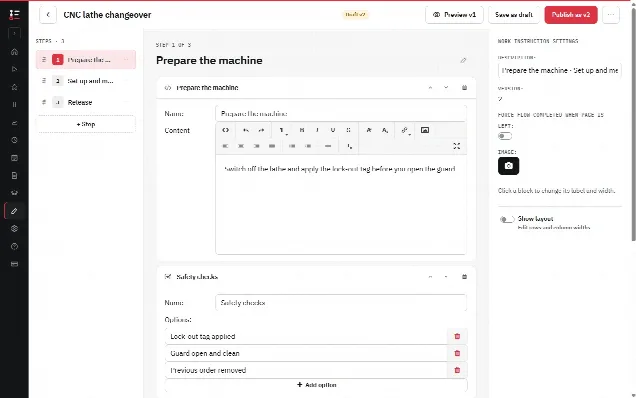
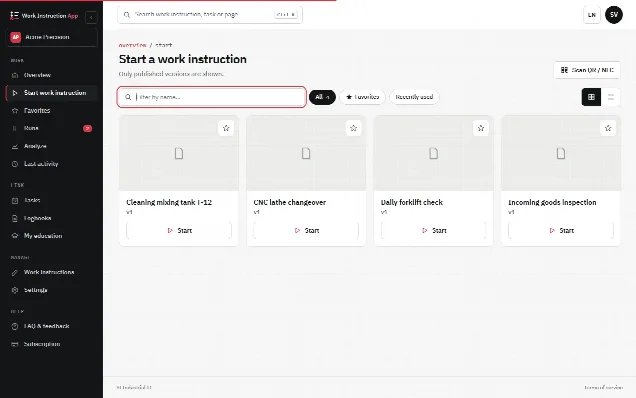
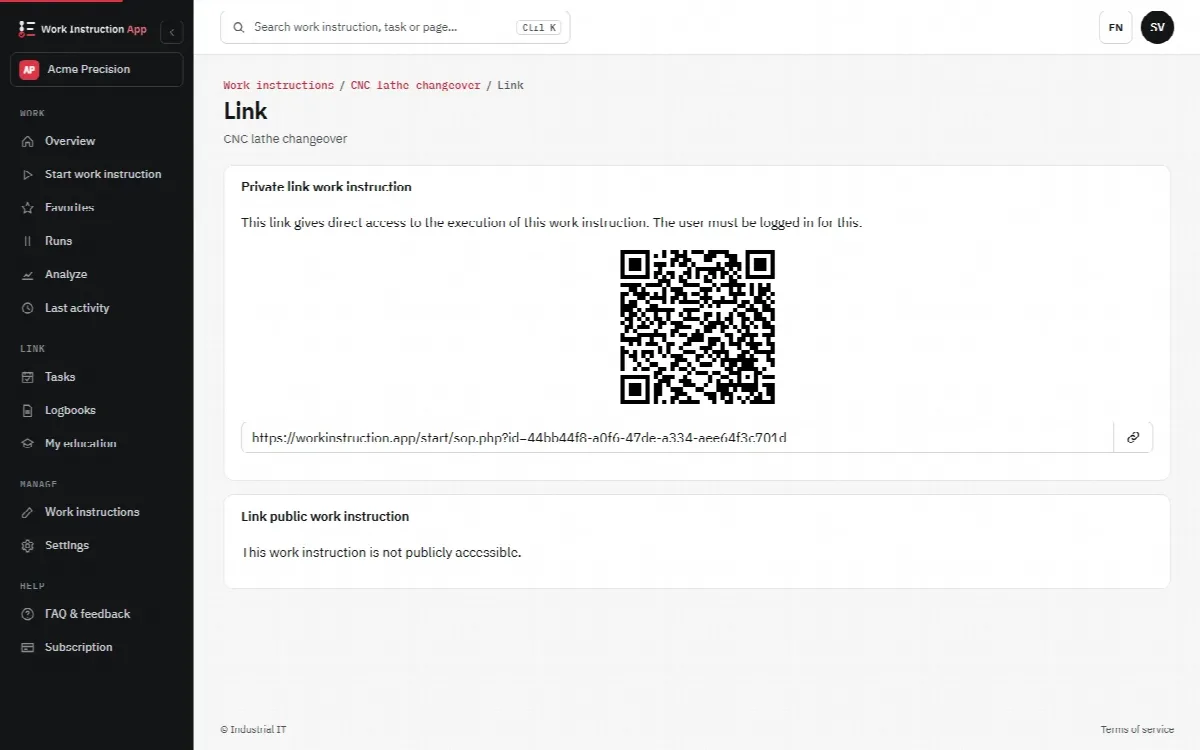
In the Work Instruction App every work instruction has its own link and QR code. Operators scan the code with the phone camera, or with the scan button in the app, and the current published version opens at once. Publishing a new version does not change the link, so labels on machines stay valid. The NFC option works the same way: the Android app from Google Play writes the link to a tag, and phones that read NFC open it with a tap.
A label can also open a logbook per machine, where several people add messages, so a fault reported on the night shift is visible to the day shift at the same machine. Every run started from a label records the user, start and end time, the version and every answer and photo. For machines that leave your site, such as rental equipment, a public link (add-on) lets customers open an instruction without an account.
A label only helps when the instruction behind it is clear. The guide on how to write a work instruction covers that part, and why digital work instructions explains what changes when the instruction lives on a screen instead of in a binder.