



Deviations and checks during the work
Last updated:
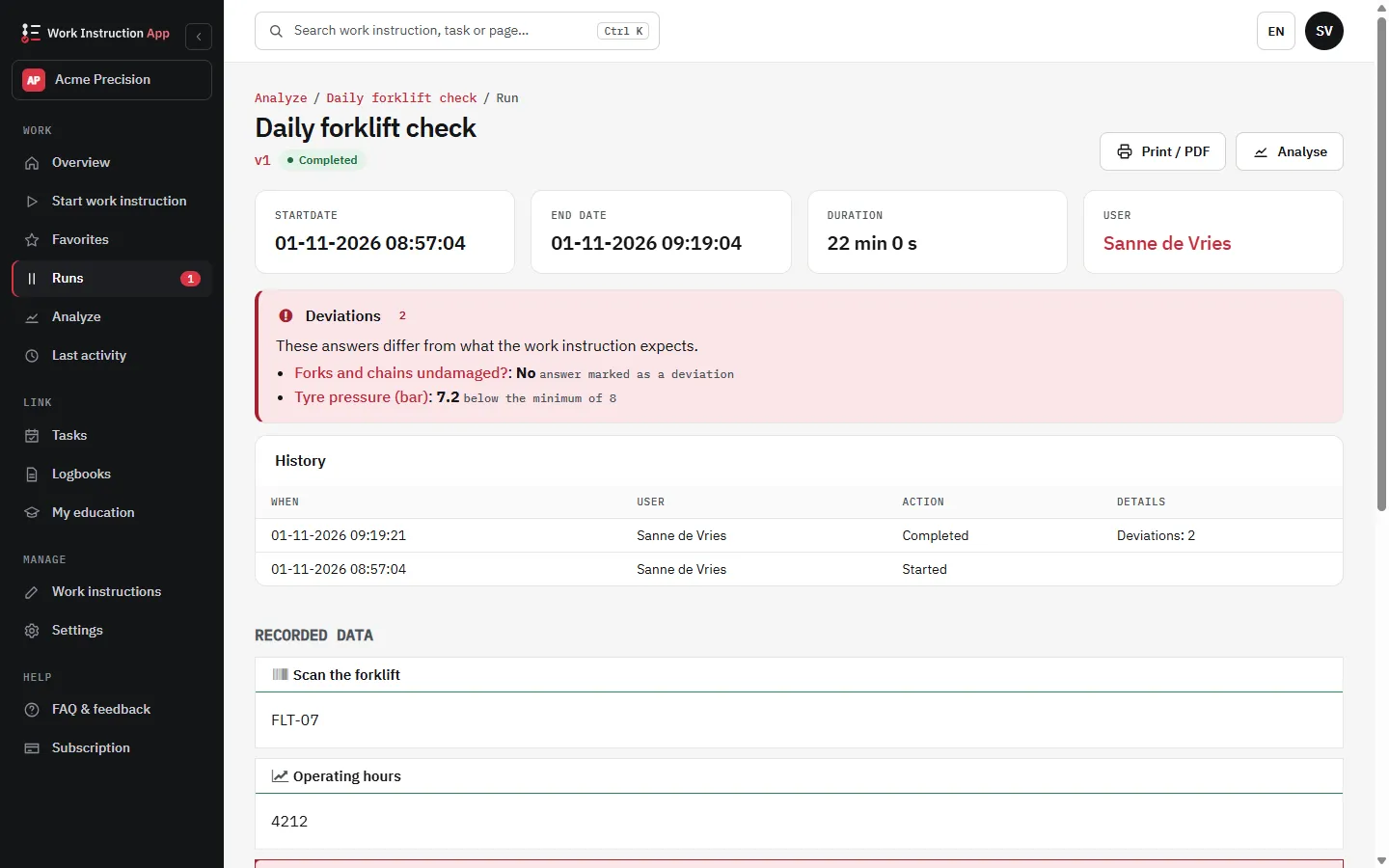
In the Work Instruction App you build the checks into the work instruction itself: a number block gets a minimum and maximum, a barcode block an expected value, and in a choice block you tick which answers count as a deviation. A wrong number or barcode stops the operator until it is corrected. Every saved run is then judged against its version, and a run with a deviation is labelled and easy to find.
A value outside the tolerance that is only noticed at the end of the week is a missed chance to act. Put the limits in the instruction, and the deviation shows up while the operator is still at the machine.
What it looks like in the app
Minimum and maximum for measured values
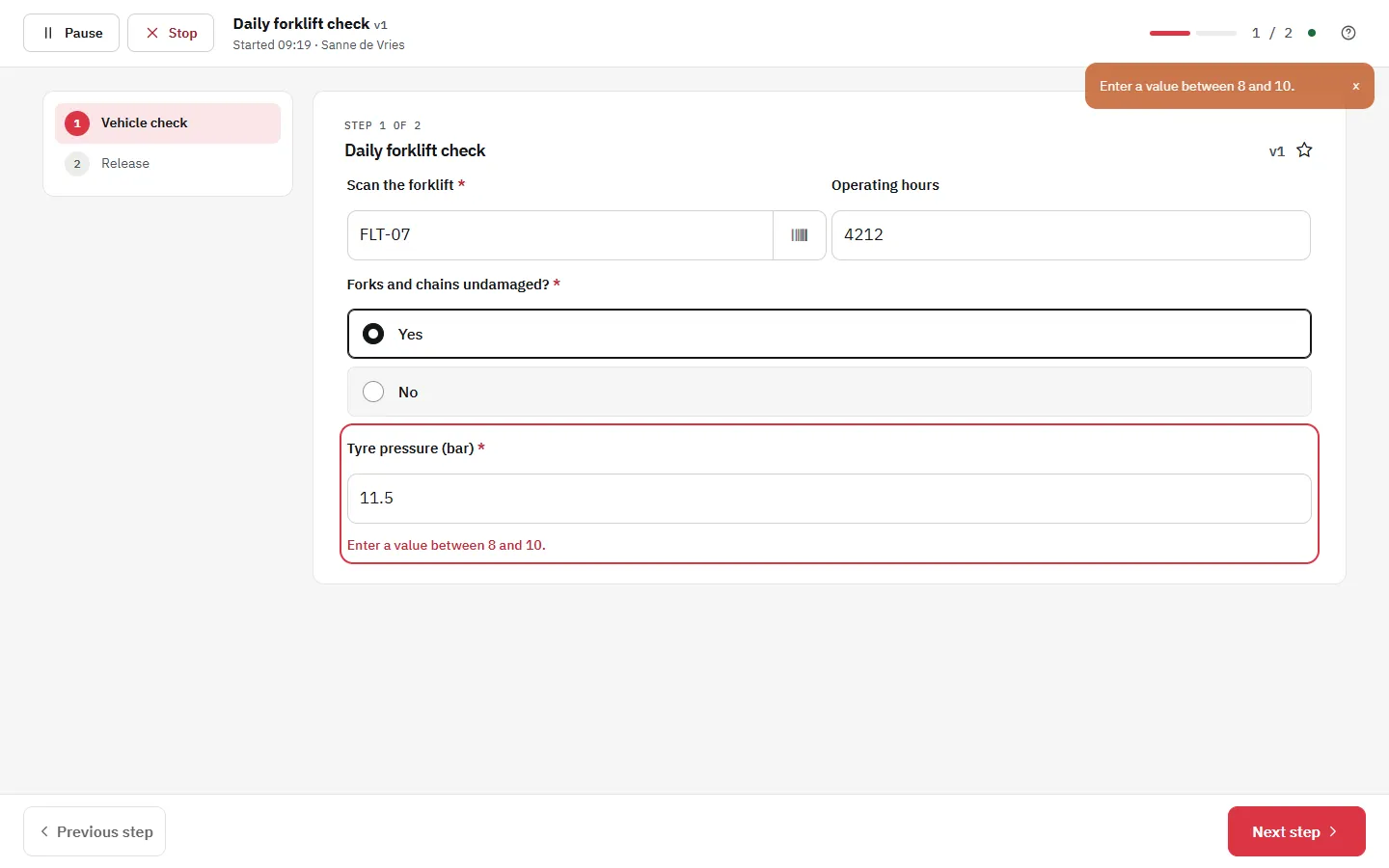
Give a number block an optional minimum and maximum in the editor. When the operator enters a value outside that range, the block is marked and Next and Finish only work once the value is corrected. Put the corrective action in the same step, so the operator knows what to do before entering the new value.
An expected barcode
A barcode block can expect one value, for example the article code of the right material or the code of the right tool. A different scanned or typed code is marked and blocks Next and Finish, so the wrong part is noticed before it is used.
Answers that count as a deviation
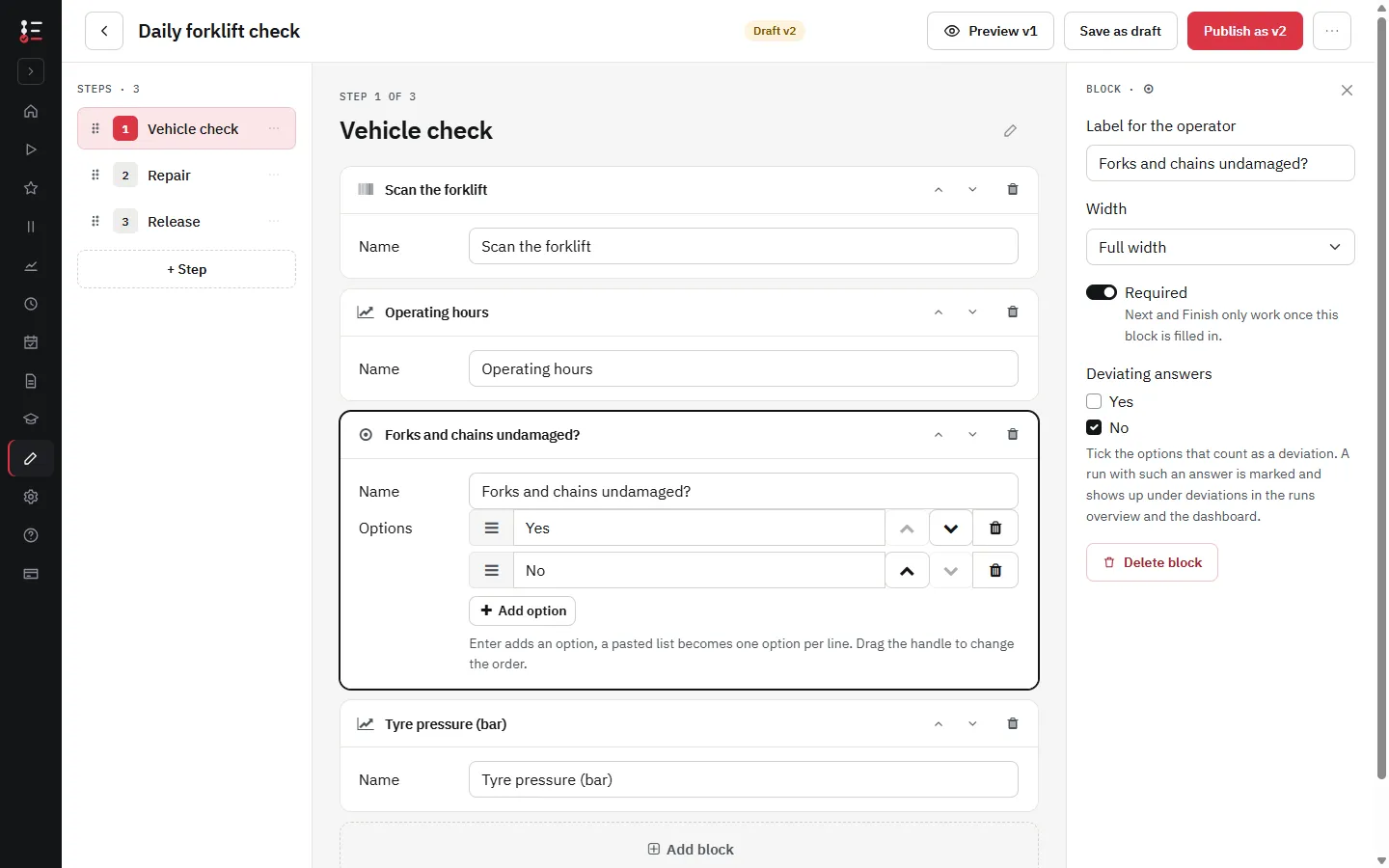
In radio buttons, a selection list, checkboxes or a switch you tick in the editor which options count as a deviation, for example No at Guard in place. The operator can still choose that answer, because it may be the truth, but the run is marked. Combine it with a step that only appears when that answer is chosen, such as a repair or a report of the defect.
Steps that only appear when needed
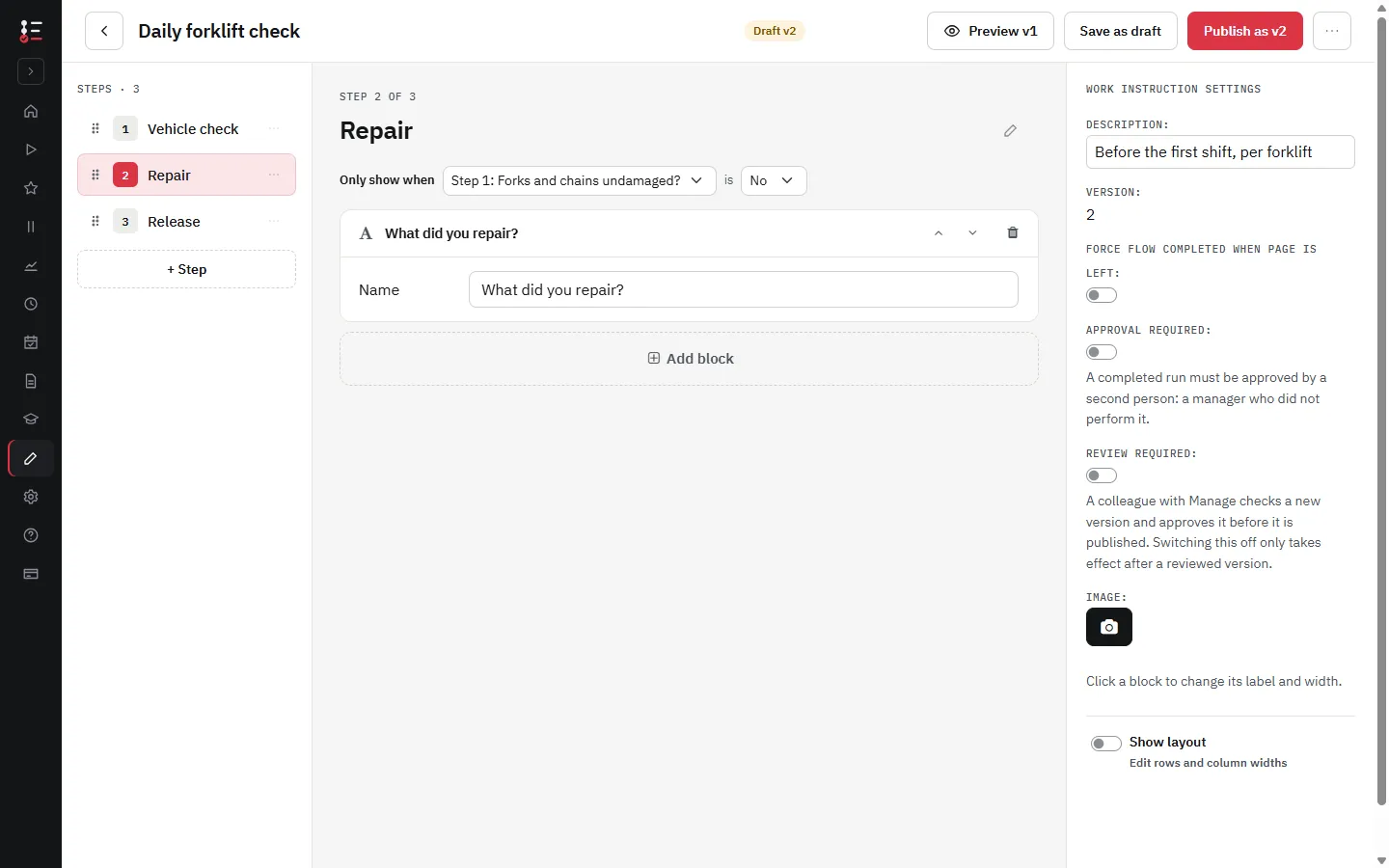
A step can be set to Only show when an answer to a choice block on an earlier step equals a chosen option, for example a repair step only when the check is answered with No. Hidden steps are skipped by Next and Previous, do not count in the progress, and a required block on a skipped step does not block Finish. In the run details a skipped step is shown as skipped.
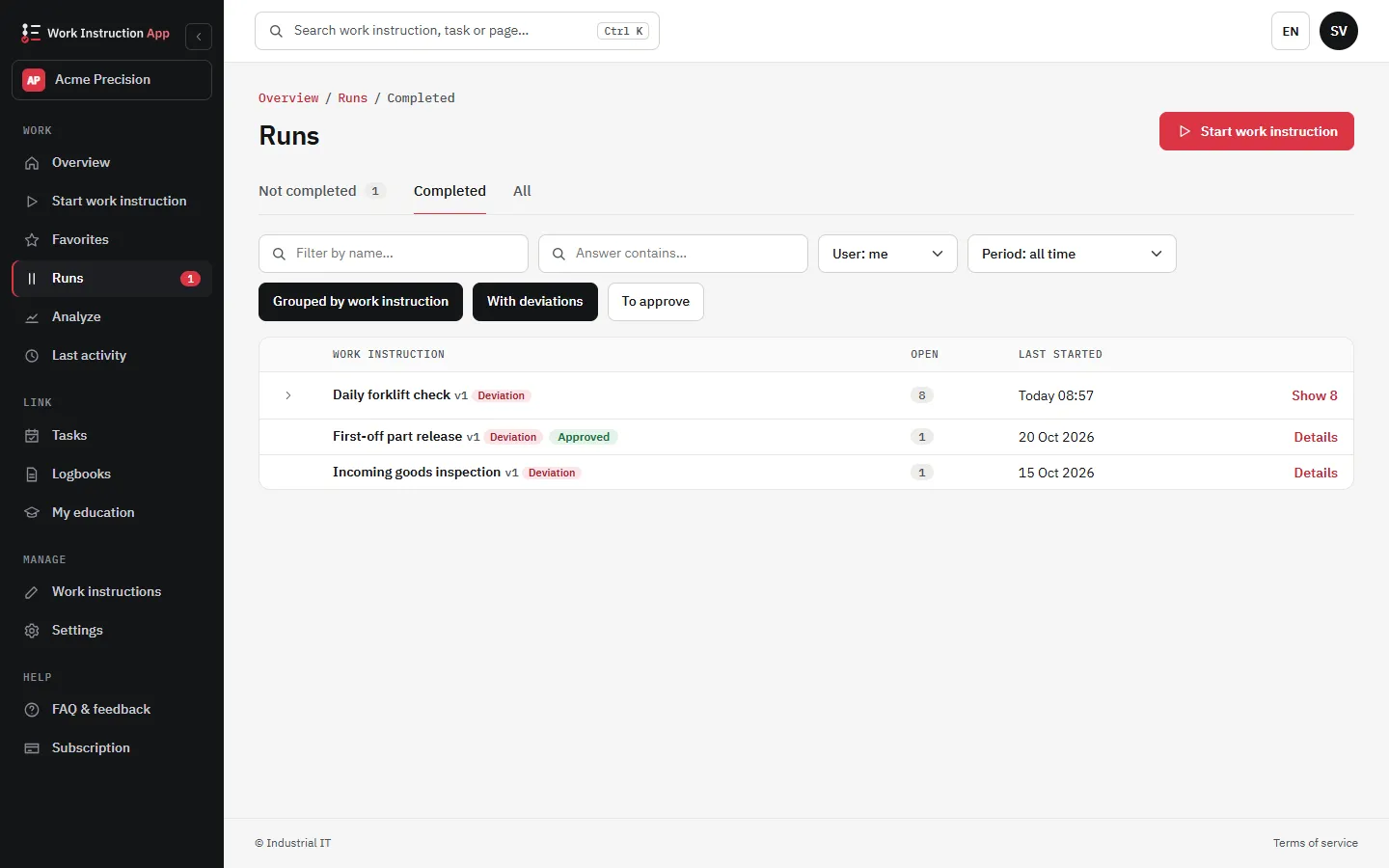
Find every run with a deviation
The server judges every saved run against the version it was carried out with: a number outside its minimum or maximum, a barcode that is not the expected value, or a deviating option that was chosen.
- A label on the run in the runs overview, and the filter With deviations to show only those runs
- A Deviations block at the top of the run details, with each deviating answer and a link to its step
- The deviations on the print page of the run and in the export to Excel or CSV
Patterns in the dashboard
With an Analyze subscription the dashboard shows deviations per week, the steps that deviate most often and a list of all deviations with links to the runs. A step that keeps deviating usually points to a cause in the process or in the instruction itself. See reports for everything the dashboard shows.
Frequently asked questions about deviations
Try the Work Instruction App for free
Create your first digital work instruction in minutes. 30-day free trial, no credit card required.
No credit card · Cancel any time · Live in 5 minutes