In short: tablets and phones on the shop floor work when you decide a few things up front: who owns the device (shared or personal), where it lives (mounted at the workstation or carried), how it is charged, cleaned and protected, and how each user logs in on a shared device. Choose the screen by the task: a tablet where people read and work with both hands, a phone where they walk and scan, a PC where they type a lot. Good Wi-Fi coverage at every workstation matters more than the device itself.
Why do work instructions move to tablets and phones?
A work instruction is only useful at the moment and place where the work happens. A binder in the office or a PDF on a desktop in the shift leader's room is too far away. A screen at the workstation shows the current version, with photos and video, and lets the operator record values, photos and confirmations as they work. The choice of device is not about technology but about the workplace: how dirty it is, whether people wear gloves, whether they walk or stand still, and whether several people share one workstation.
Shared devices or personal devices?
This is the first decision, because it determines logins, charging and responsibility.
- Shared devices belong to the workstation or the line. They stay in place, are always charged and are the same for everyone. The challenge is that several people use them in one day, so each person must log in as themselves, otherwise you no longer know who did what.
- Personal devices belong to one operator, technician or team leader, either a company phone or (with clear agreements) the employee's own phone. The login is simple and the device goes where the person goes. The challenge is charging, loss and the mix of models and operating system versions.
Many sites use both: a mounted tablet at fixed workstations and a company phone for technicians, logistics and team leaders who walk around.
Phone, tablet or PC: which fits which situation?
The table gives a rule of thumb. Every situation is different, so test on the floor before you buy in bulk.
| Situation | Phone | Tablet | PC with large screen |
|---|---|---|---|
| Fixed workstation, assembly with both hands | Too small to read from a distance | Good: mounted at eye level | Good when there is space and no dirt |
| Walking rounds, inspections, maintenance | Best: fits in a pocket | Possible, but heavy to carry all day | Not suitable |
| Scanning QR codes and barcodes | Good: camera always at hand | Good, but awkward to aim when mounted | Only with a separate scanner |
| Tapping NFC tags | Good on phones with NFC | Many tablets have no NFC | Not suitable |
| Taking photos and videos of the result | Good | Good, but large to hold | Only with a webcam, rarely useful |
| Watching instruction videos and large drawings | Small | Good | Best |
| Typing long texts, building work instructions | Tedious | Possible with a keyboard | Best |
| Wet or very dirty area | In a rugged or waterproof case | In a rugged case, mounted out of the splash zone | Only in an industrial enclosure |
How do you mount and charge devices at the workstation?
A tablet that lies on the workbench gets dirty, falls and is gone by the next shift. A fixed spot solves most problems.
- Mount at eye or chest height, within reach but out of the way of moving parts, hot surfaces and the path of forklifts. The operator should be able to read the screen without bending or turning away from the work.
- Use a holder that can tilt, so you can avoid reflections from lamps and windows.
- Charge in the holder. A charging cable through the holder or a charging dock means the device is full at the start of every shift. Without it, someone has to remember to charge it, and that someone does not exist.
- Agree on a place for mobile devices. Phones and handheld tablets get a charging station near the shift board, with a fixed spot per device.
- Lock what needs locking. In areas with a lot of traffic, a holder with a lock prevents devices from walking away.
How do you deal with gloves and screen size?
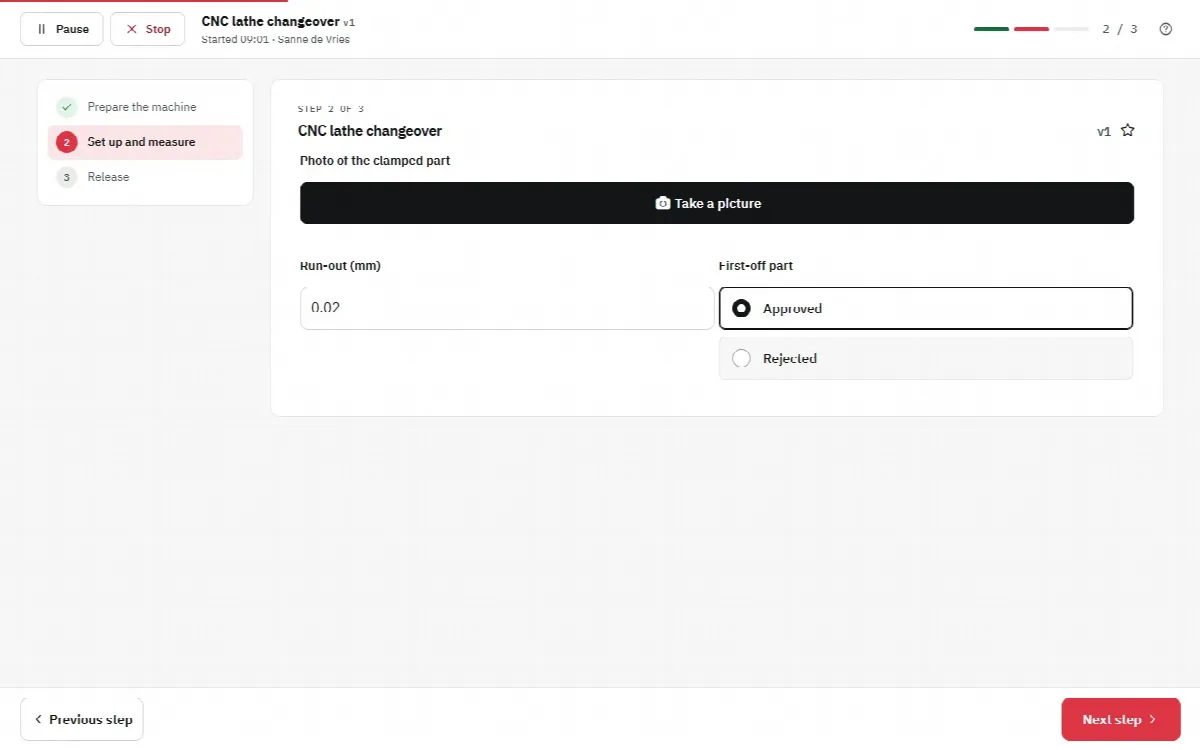
Gloves are the most underestimated problem. Many work gloves do not work on a touch screen, and thick gloves make small buttons impossible to hit. Options are gloves with conductive fingertips, a stylus on a cord at the workstation, or simply a work instruction that needs few taps: one clear action per screen, large buttons such as Next and Finish, and choices as radio buttons or checkboxes instead of typing.
Screen size follows reading distance. If the operator reads from arm's length while working, a tablet is the practical minimum. If they hold the device in their hand, a phone is enough. Photos in a work instruction should then be taken close to the subject, so the detail stays visible on a small screen.
How do you keep shared devices clean and hygienic?
In food, pharmaceutical and cleanroom environments, hygiene rules decide what devices are allowed and how they are cleaned. Outside those environments, a shared device still passes through many hands every day. Practical measures:
- Use a case or screen protector that can be cleaned with the agents used in that area, and check with the manufacturer of the device which agents the screen tolerates.
- Make cleaning part of an existing routine, such as the start-of-shift check or the cleaning schedule, instead of a separate task nobody owns.
- In wet areas, keep the device out of the splash zone of cleaning, and choose a waterproof case when that is not possible.
Is the Wi-Fi coverage good enough?
A digital work instruction needs a network connection. In offices, Wi-Fi is usually fine; on a shop floor, steel racks, machines, cold stores and long halls create dead spots. Walk the floor with a phone before rollout and test at every workstation and on every inspection route: open a work instruction, take a photo, finish it. Where coverage is weak, add access points before you start. In the Work Instruction App a run that has been started keeps working when the connection drops and is sent once it is back, but starting a run, reloading the page and recording video need a connection, and operators who keep running into dead spots lose their trust in the system quickly. Plan for mobile data as a backup for technicians who work outdoors or at customer sites.
How do people log in on a shared device?
On a shared device, the risk is that everyone works under the account of whoever logged in first. Then the record says that one person did everything, and the value of a traceable record is gone. Three habits prevent that:
- Everyone has their own account. No shared "line 3" accounts.
- Log out at the end of the task or the shift. Make it part of the shift handover.
- Make logging in quick. If your company uses Microsoft accounts, single sign-on means people use the login they already know.
Browser or app?
A web-based work instruction system runs in the browser of any modern phone, tablet or PC, without installing anything. That is the easiest start and works on mixed devices. A dedicated app can add things the browser cannot do on every device, such as writing NFC tags or using the device's own scanner. Check which functions you really need per device: for reading and filling in work instructions the browser is often enough.
What does this look like with the Work Instruction App?
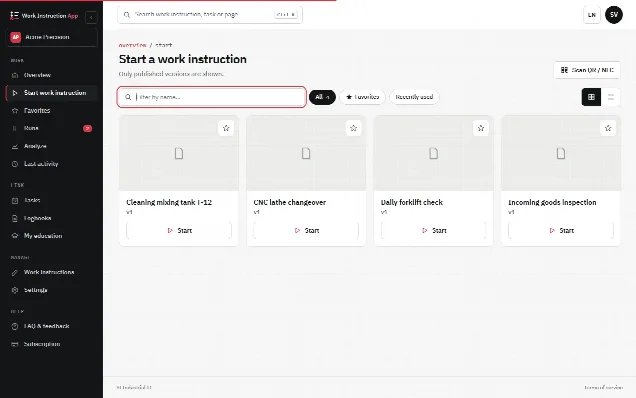
The Work Instruction App runs in the browser on any modern phone, tablet or PC, and there is an Android app in Google Play that can also write NFC tags. Operators start a work instruction from the overview, through search or favourites, or by scanning a QR code at the machine. On a shared device every user logs in with their own account, or with Microsoft Entra ID single sign-on, so each run records the right user, start and end time, version and every answer and photo. A run that is interrupted can be paused and resumed later, at the page where it was paused.
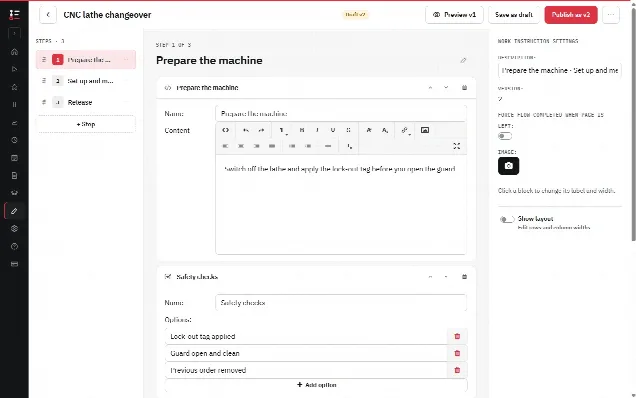
Work instructions are built in the browser editor, which is easiest on a PC, and used on whatever device fits the workstation. Steps such as checkboxes, radio buttons, number fields and photos keep typing to a minimum, which helps with gloves and small screens. The full list of steps is on the features page; practical questions about daily use are answered in the usage FAQ, and getting started walks through the first setup.
A device on the floor is only as good as the instructions on it. See how to write a work instruction for steps that work on a small screen, and why digital work instructions for the case for moving off paper.