In short: Word or Excel is fine for a handful of work instructions used by one team at one location, as long as one person keeps them up to date. It breaks as soon as you have several versions in circulation, instructions on several lines or shifts, a need to prove that a task was done, or operators who work on phones and tablets. Dedicated software solves those problems by design. You do not have to start over to switch: export your existing files to PDF and convert them, then rebuild the critical ones step by step.
Why does almost everyone start in Word?
Because it is already there. Everyone can open it, there is no budget to approve, and a template is made in an hour. For a first set of instructions that is a sensible choice: the hard part of a good instruction is the content, not the tool. Our SOP template and the guide on how to write a work instruction both work perfectly well in a Word document.
The question is not whether Word can hold a work instruction. It can. The question is what happens around the document: how the right version reaches the workplace, how you know it was followed, and how a change reaches everyone at the same time.
When is Word or Excel good enough?
Word is a reasonable choice when all of the following are true:
- You have a small number of instructions, and they rarely change.
- One team at one location uses them, so there is one place where the printed copy hangs.
- One person owns the documents and has the discipline to replace every printed copy after a change.
- You do not need to prove afterwards who did a task, when, and with which result.
- Operators read the instruction on paper or at a PC, not on a phone at the machine.
Excel adds something Word lacks: a sheet where values can be filled in. That makes it popular for checklists and logs. But a filled-in Excel file has the same problems as a Word file, plus a new one: there is no reliable record of who typed what, and anybody can change a value later.
Where does Word break?
Versions
A Word file is copied the moment it is e-mailed, printed or saved locally. After a few changes there are several versions in circulation: one on the shared drive, one in someone's e-mail, a printed one at the line with handwritten notes. Nobody can say with certainty which version an operator used last Tuesday. A version number in the footer only helps if every old copy is actually removed.
Distribution
Getting a change to the workplace means printing, walking, replacing and collecting old copies, on every line and every shift. In practice that step is skipped or delayed, so the instruction on the floor runs behind the one on the drive.
No record of execution
A Word instruction tells someone what to do, but leaves no trace of what was done. If a customer complains or an auditor asks, you can show the instruction, not that it was followed. A separate paper checklist helps, but has to be collected, read and filed.
No mobile use
Word documents are designed for A4 paper. On a phone or tablet, a long document means zooming and scrolling, and photos end up too small. Operators who work at a machine or out in a warehouse will not do that during a task.
No evidence
A Word document cannot ask for a measured value, refuse to continue when a check is missing, or let the operator take a photo of the result. Those are exactly the moments where errors are made. In regulated environments, electronic records also have rules of their own: in FDA-regulated industries, for example, 21 CFR Part 11 sets requirements for audit trails and electronic signatures that a shared Word folder does not meet by itself.
How do Word, Excel and dedicated software compare?
| Topic | Word | Excel | Work instruction software |
|---|---|---|---|
| Getting started | Immediately, no cost | Immediately, no cost | Account and some setup; usually a trial first |
| Writing the instruction | Familiar, free layout | Awkward for text and photos | Pages with steps; built for instructions |
| One current version | Only by procedure and discipline | Only by procedure and discipline | Built in: publishing replaces the old version for everyone |
| Version history | Manual (file names, footers) | Manual | Automatic, older versions stay traceable |
| Distribution to the workplace | Print and replace | Print or shared file | Opens on a device, for example via a QR code at the machine |
| Use on phone or tablet | Poor | Poor | Designed for it |
| Values, photos, signatures | Not possible | Values only, no photos | Input steps on every page, can be required |
| Record of who did what | None | Unreliable | Every run with user, time, version and answers |
| Cost | Licence you already have | Licence you already have | Subscription, usually per user |
Does a shared drive or SharePoint solve the problem?
Partly. Putting all Word files in one shared library with version history is a real improvement over files scattered across e-mails and desktops: authors work on one file, and earlier versions can be restored. But the library solves the problem in the office, not on the shop floor. The printed copy at the machine is still a copy, operators still need a PC and a login to find the current file, and the document still records nothing about how the task was carried out. A document library is document control; a work instruction system adds execution: the instruction opens at the workplace, asks for checks along the way and keeps a record of every run. Many companies keep both: policies, contracts and reference documents stay in the library, and the instructions that people follow at the workplace move to software.
What are the tipping points to switch?
Most companies switch when one of these situations occurs:
- The same instruction is used on more than one line, shift or location.
- An error, complaint or audit finding is traced back to an outdated copy.
- A customer or auditor asks for proof that a task was done, and with which version.
- Operators work with phones or tablets, or in places without a PC.
- New staff, temporary workers or multilingual teams need to learn tasks quickly.
- The person who maintained the Word files leaves, and nobody knows which file is current.
If two or more of these apply, the time spent on printing, replacing and searching is usually larger than the effort of switching.
How do you switch without starting over?
You do not have to rebuild everything on day one. A practical migration path:
- Collect the current Word and Excel files and remove the outdated ones.
- Export them to PDF and upload them to the new system, so there is one central version straight away.
- Rebuild the instructions with the highest risk step by step, with checks, photos and required fields.
- Place QR codes or NFC tags at the workplace and remove the paper copies on the same day.
- Rebuild the remaining PDFs with steps the next time they change.
How does this work with digital work instructions in the Work Instruction App?
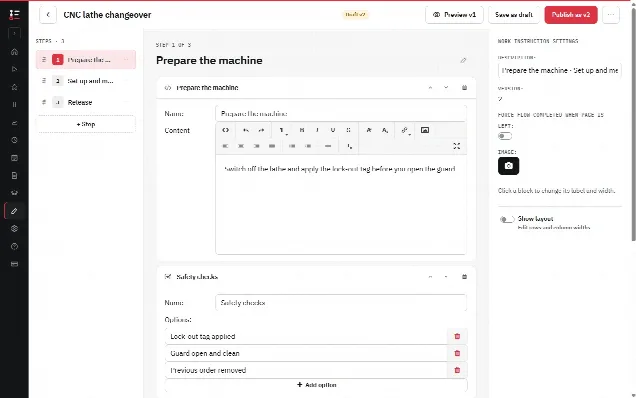
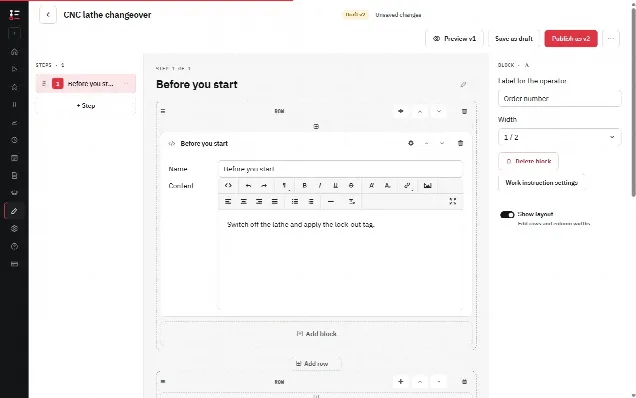
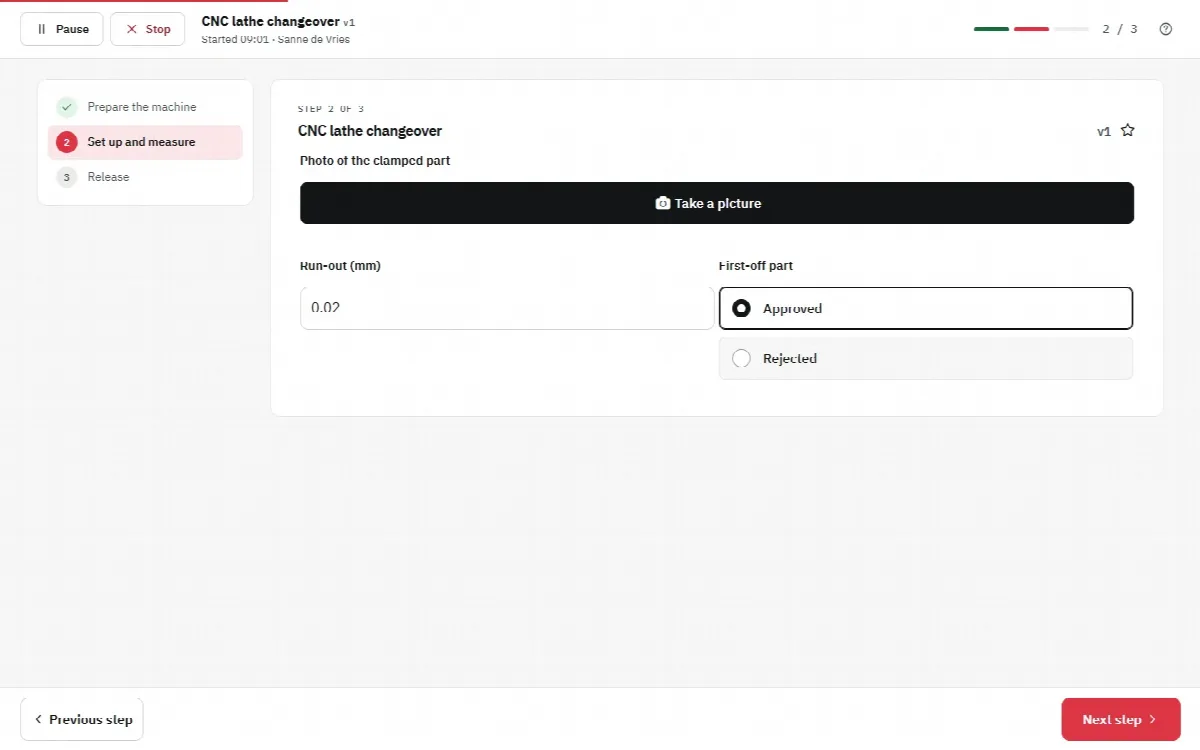
In the Work Instruction App, "Convert files to work instructions" turns PDF and image files into a new work instruction: every file becomes a page, and the instruction opens in the editor. Word, Excel and PowerPoint files are not converted directly, so export them to PDF first. You can then add steps such as checkboxes, number fields, photos taken by the operator and signatures, and mark them required, so Next and Finish only work when they are filled in. Publishing creates a new version (v1, v2 and so on); older versions stay traceable and every run records the user, start and end time, the version and every answer. Operators open the instruction on a phone, tablet or PC, from the overview, by search or by scanning a QR code or NFC tag. See digital work instructions, version control and SOPs for more, or follow the getting started guide to build your first digital work instruction.
Excel keeps its place for analysis. The completed runs of a work instruction can be exported per period to Excel (.xlsx) or CSV, with one column per step and the user, start and end time, duration, status, deviation and approval of every run, and every run has a print page that you can save as PDF from the browser. The difference with a filled-in spreadsheet is that the values come from records that can no longer be changed after completion.